
How to manipulate JSON Dictionaries in Shortcuts
🔗Shortcuts
I love tinkering with Shortcuts on iPad or iPhone and one of my most powerful one is the Journaling Shortcut. I’m using this to journal every day and turns out other people are also using it and they had some feedback for me. One of the suggestions was to make questions in the Shortcut more customizable. Before I implemented it I wanted to create a proof of concept - how would editing (creating, changing or removing) questions look like? Turns out, it’s not so easy with Shortcuts, but I figured it out.
Saving questions as a JSON file or a Dictionary in Shortcuts
JSON standard is a way to store Key->Value pairs and is reflected in Shortcuts as a Dictionary. To edit the JSON files I use the simple Jayson app by Simon Støvring.
Now, Shortcuts has great support of Dictionaries but manipulating them is not easy, because you have only three actions associated with them:
- Get Dictionary from Input
- Get Dictionary Value
- Set Dictionary Value
There’s no “Remove Dictionary Value” for example. To remove a dictionary value you basically have to create a new dictionary without this value, always paying attention that when you modify a dictionary you have to save it to the same variable. It’s complicated.
Dictionary support in Shortcuts has bugs!
One of my favorite bugs (or “features”?) of Dictionary support in Shortcuts is that when you save the dictionary, it very often changes the order of items randomly. That’s right, the first item may no longer be first, it might be the last suddenly… Upon each save the dictionary order may or may not change. It’s random.
Definitive Shortcut that demonstrates Dictionary manipulation
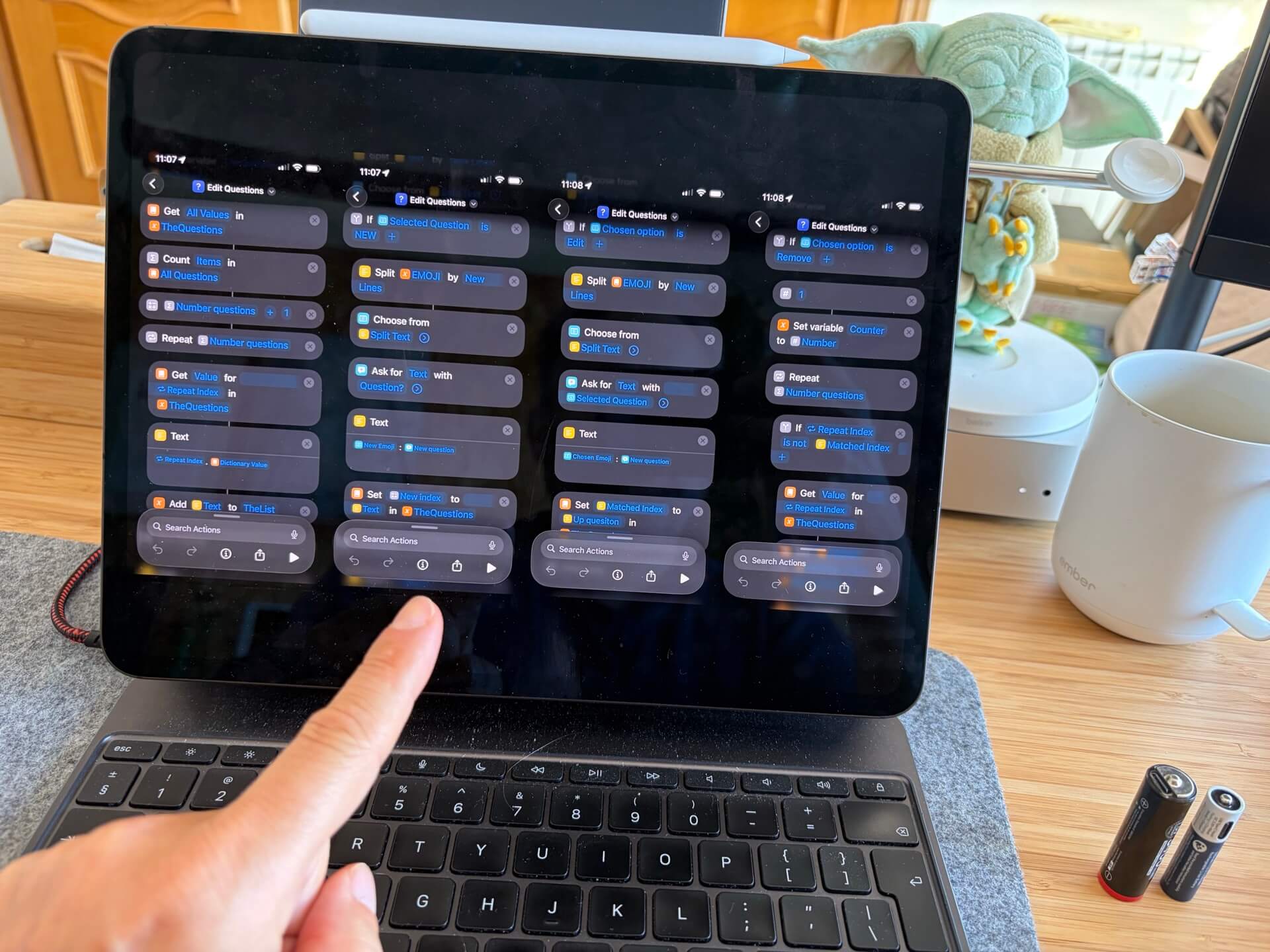
That’s why as a reference for myself and for anyone who finds this useful, I built a “definitive” Shortcut that demonstrates how to get a Dictionary from JSON, how to edit a chosen item, remove it or add a new one… and take into account the “random order” bug.
It comes down to this:
- Get JSON data from a file questions.json in the iCloud > Shortcuts folder.
- Show the items (questions in this example) in their respective order even if they are randomly sorted
- When clicked on “New question”, ask for info to add a new question to the dictionary
- When chosen a question, add support for these two actions: Edit or Remove
- When chosen to “Edit” a question, ask for info based on the question chosen
- When chosen to “Remove” a question, create a new dictionary based on the old one without the question selected, while creating new indices for questions (and make sure all are in order!)
As a bonus, my questions also require an Emoji sign associated with each question, so I’ve thrown it in there as well if you’re curious.
Get the “Edit Questions” Shortcut
Remember, if you want to test out this Shortcut, you must download the accompanying JSON file: questions.json and save it in the iCloud > Shortcuts folder.
Version History
- 1.0 - November 2025 - initial release.
- 1.1 - April 2026 - updated the Shortcut with cleaner code and regex rules.
- 1.2 - May 2026 - updated with fix to remove all questions, options translatable.