
Apple Frames Shortcut modified for the iPhone Air
🔗Shortcuts
Over many years I’ve been using the great Apple Frames Shortcut from the MacStories Shortcuts Archive by Federico Viticci to post screenshots from my iPhone on this blog. He’s done a great piece of work with this free Shortcut, which I truly appreciate and I’m grateful for. However, he hasn’t updated it for the iPhone 17 series, which also means I couldn’t use it with my beloved iPhone Air. So I hacked it:
- Why I need the “Apple Frames” Shortcut
- 3 Steps to modifying Apple Frames Shortcut for the iPhone Air
- Done! Now I can generate Apple Frames on the iPhone Air!
- Thank you Federico and the MacStories team!
Why I need the “Apple Frames” Shortcut
I know there are apps that could help me solve the problem of wrapping screenshots from my iPhone with an elegant frame, but I just wanted a simple way to do it without installing additional apps… so I decided to hack Federico’s Shortcut and make it work with the Air.
All copyright remains with Federico. Make sure to get the Shortcut from his official web site. All I’ve done is just a few simple modifications which don’t make it a pixel-perfect framing Shortcut for my iPhone Air, but a good-enough version.
If you’re using the latest iPhone 17 or 17 Pro or 17 Pro Max, chances are that Apple Frames 3.3 works on your machine because the 17 series of the iPhone have the exact same resolutions as the 16 series…
But not the iPhone Air. It has a 2736-by-1260-pixel resolution of its 6.5” display.
That’s why it doesn’t work out of the box. I asked Federico for help, but he never responded to me and I can totally understand it as he’s busy with running his MacStories empire and I know how much work updating a free Shortcut is. That’s why I decided to hack it and make it work with the Air.
3 Steps to modifying Apple Frames Shortcut for the iPhone Air
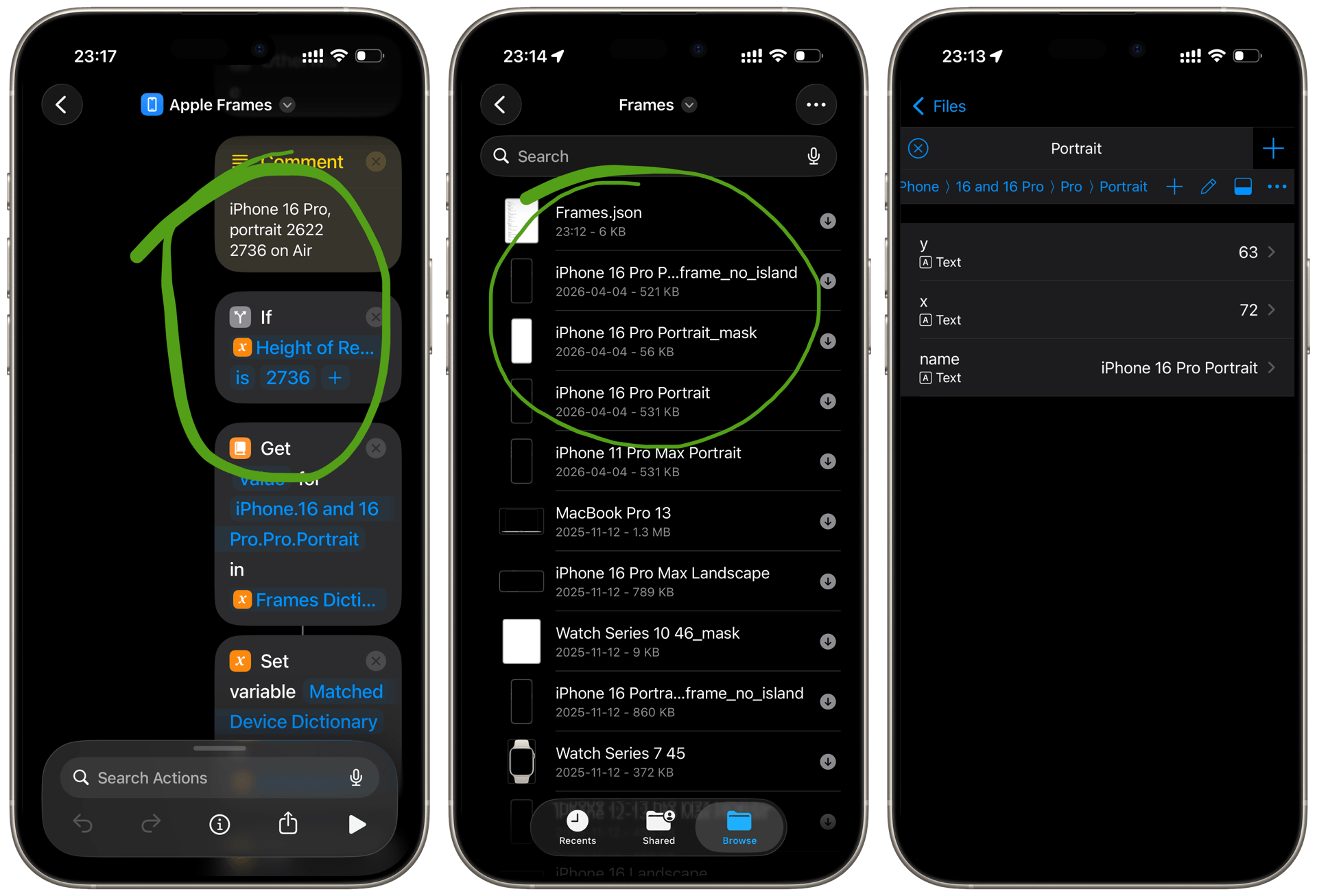
Here’s what I had to do (and you can see it all on the screenshots above, made with the modified Apple Frames Shortcut):
Step 1. Replace the height of the iPhone 16 Pro with Air
I decided to simply replace the iPhone 16 Pro with the Air in the Shortcut, so I searched for a place where it checked for width of the iPhone and changed the 2622 pixels to 2736.
Download Apple Frames 3.3 modified for iPhone Air
Step 2. Modify the X and Y positions in Frames.json for the iPhone 16 Pro
I don’t take my screenshots in landscape, so I just modified the “portrait” X and Y positions in the Frames.json file to 72 and 63 respectively.
Step 3. Modify iPhone 16 Pro frames for the Air
I couldn’t find any good iPhone frames for the Air on the Internet so I simply modified in Pixelmator on the iPad the iPhone 16 Pro Max screenshots to Air sizes based on the proportion of the screen resolution. It worked. You can download these files from here:
- (PNG) iPhone 16 Pro Portrait_mask
- (PNG) iPhone 16 Pro Portrait_frame_no_island
- (PNG) iPhone 16 Pro Portrait

Done! Now I can generate Apple Frames on the iPhone Air!
It works and it’s good enough. If you have an iPhone Air and want to follow my lead, simply do these steps:
- Get my “hacked” Apple Frames Shortcut 3.3
- Follow the installation procedure to download all the files and resources.
- Overwrite their
Frames.jsonwith mine (link above). - Overwrite their 16 Pro files with mine (links above).
- Enjoy!
Thank you Federico and the MacStories team!
Again, I claim no copyright to the official Apple Frames Shortcut as I just modified a few small things to make sure it worked with the iPhone Air.
If they ever update the Shortcut to work with the iPhone Air, I’ll post an update to this page. Thanks Federico for making such a great Shortcut - I do appreciate you and the amount of work you’ve put into this! Thanks! 🙏